Step-by-step Guide
Browse the topics below. Each topic includes quick steps you can follow while using your MontanaSky TV.
Introduction to Your TV Features
Back to topHere are some of the main features available to you.
Replay a program that aired up to 24 hours ago – go back up to 24 hours ago in the TV Guide to watch or record a program
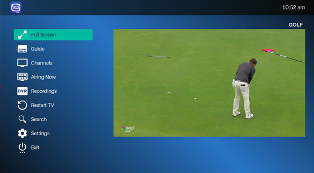
Pause Live TV – you can always pause Live TV, but you have more options when you press the center circle “OK” button on your remote (including starting any program over from the beginning)
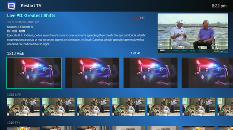
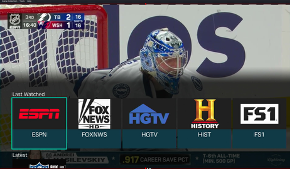
See the last 10 channels you watched - while watching a program, press the center circle remote button and scroll down a few rows to display the “Last Watched” channel menu
Record - what you are watching live or schedule a future recording from the TV Guide. You have 112 hours of recording space, and recordings are kept for 7 days
Getting Started with the Remote Control Main Features
Back to top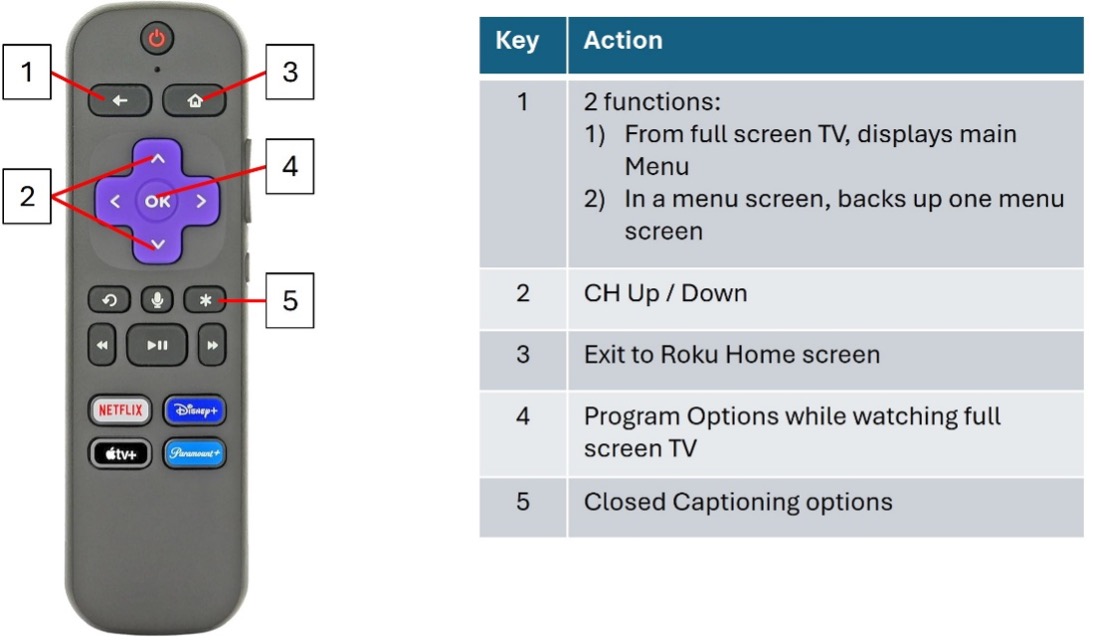
Restart TV That You Missed
Back to topYou can scroll back up to 24 hours in the TV Guide to watch or record a program you may have missed. The main Menu also has a “Restart TV” list of all the programs available to restart in the past 24 hours listed by channel number.
How to See Your 10 Last Watched Channels
Back to topWhile watching a program, press the circle OK remote button and scroll down a few rows to display the below screen.
How to Record
Back to top
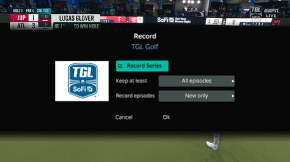
You can record the program you are watching live, as described above. You can record one episode or a series.
From the TV Guide, you can schedule to record a future program or go back in the TV Guide up to 24 hours to watch or record a program.
NOTE: Recordings are auto deleted in 7 days. You have 112 hours of recording space.
Create Favorite Channel Lists
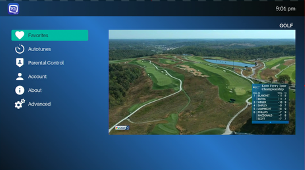
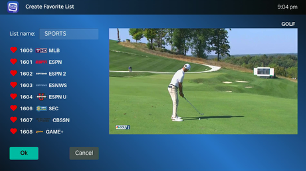
Back to topCreate as many favorite channel lists as you want.
How to See Your Favorite Lists
Back to topOption 1 -Sort Your TV Guide to Only Show Your Favorite List
In the TV Guide, on the remote long press for 2 seconds and release the Back button to display the TV Guide with the option on top to filter by your favorite lists.
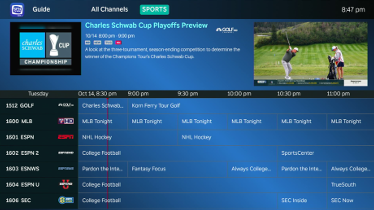
Option 2 - Select All Channels from the Main Menu to display the left screen view below. After you create favorite channel lists, for example “SPORTS”, you can switch to display your favorite “SPORTS” channel list here. Switch the list by using the remote left/right arrows.
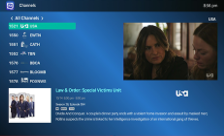
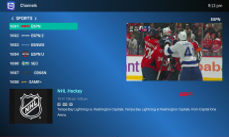
Changing Your Favorite Lists
Back to topOption 1 - While Viewing Your Favorite Channel List in the TV Guide
Select a future program for the channel you want removed.
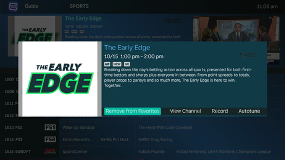
Option 2 – Select “Channels” from the Main Menu
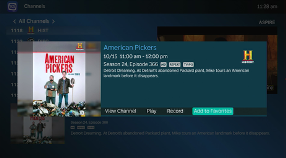
While viewing all channels or your favorite list, press and hold the OK button for 2 seconds and release the button to display the screen below. You can add to or remove the channel from your favorite list.